
Certifi Overview
Welcome to Certifi! Certifi is a web-app for creating, managing and tracking your invoices. These invoices can then be sent to your clients and tracked in real-time as they are processed through your clients business. This makes Certifi unique because users now have full clarity as to how close you are to being paid. This document outlines the key features of Certifi and should act as a guide for any of these features that are found to be confusing.
User Types and Permissions
User Roles
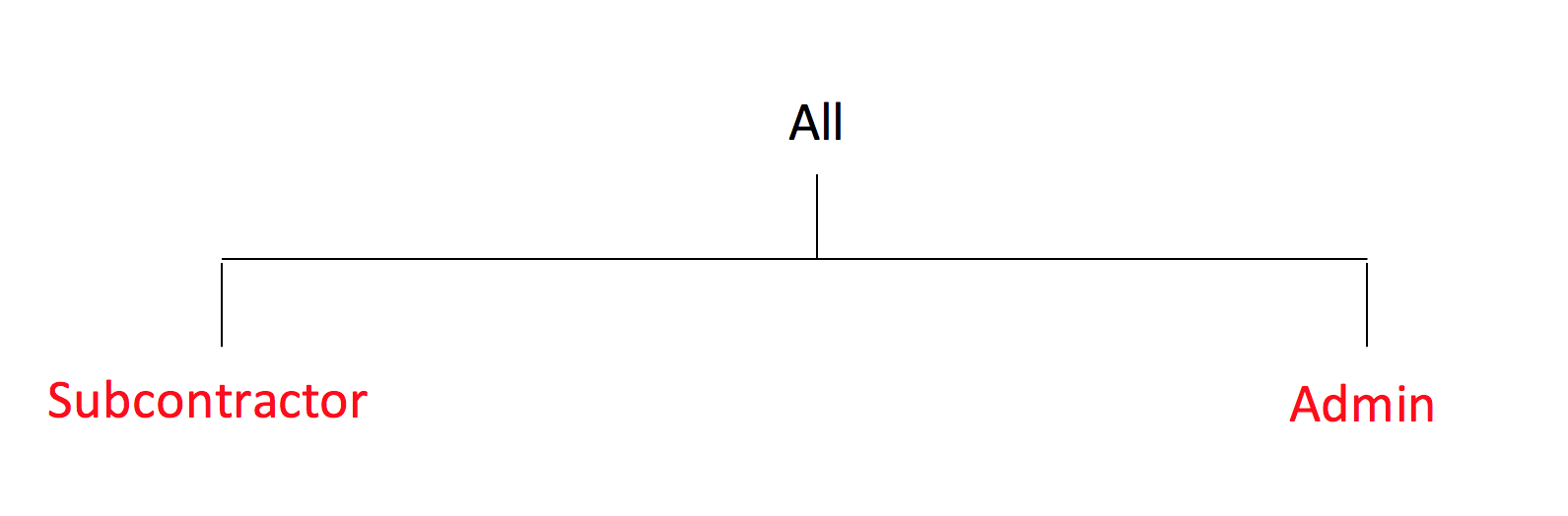
Each user is assigned a role. This must be either Subcontractor or Admin. Admin users are users who work for the parent company (the company on the receiving end of invoices), whilst Subcontractors are users with access to creating and sending invoices.
User Jobs
Whilst each user has a specific Role, they must also have a specific Job. For admin users, your job type sets which parts of the site you have access to and actions you can take on invoices. However subcontractor users only have one possible job: Rigger. These privileges are explained in further detail below.
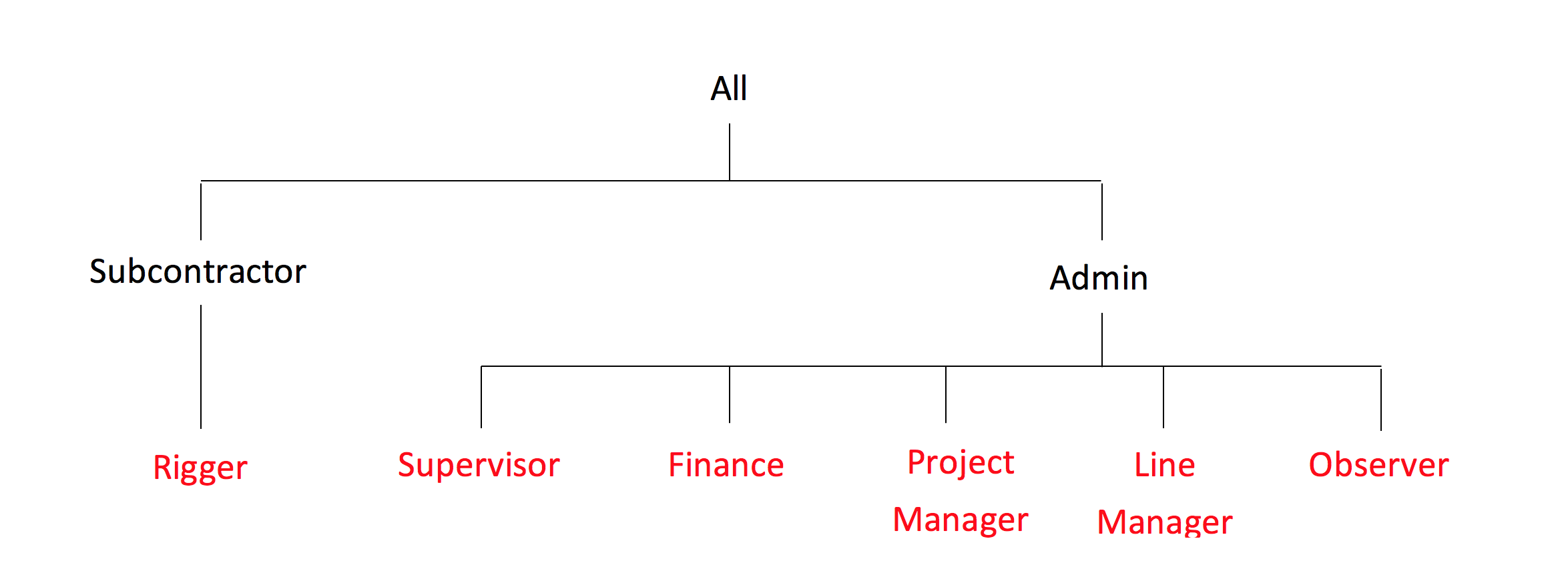
Supervisor
This is the “Super-Admin” role for the parent company. Supervisors have full access to all invoices within their company and can perform any actions upon them. This means they can accept or reject invoices on behalf of any other Admin user. This is the only user job to have access to the User Management feature, see User Management Page of this document for more information.
Project Manager
Each Subcontractor is assigned to a Project Manager when they are signed up. A Project Manager can only see invoices within the company assigned to them (invoices sent by their subcontractors). When a subcontractor submits an invoice, its first port of call is the Project Manager (PM). The PM must then inspect the invoice and decide to accept or reject it.
Finance
Finance users have full access to all invoices within the company. Once the invoice has been accepted by the PM it is sent to the Finance users within the company. These users have the power to approve an invoice for payment and also to mark the invoice as paid once the transaction of money has taken place.
Line Manager
Line Managers have the exact same access rights and actions as a Project Manager. The only difference is a Line Manager has visibility of all invoices within a company, whilst a Project Manager can only see the invoices specifically assigned to them.
Observers
Observers have read-only access over all invoices with the company. These users are not able to approve or reject invoices or interact with them in any way. This job is usually reserved for members of Management or trainees for example.
User States
In Certifi, users will always have one of five states. These states represent where the user is in the signup process:
Invitation Sent
An invitation has been sent to the user via email, but they have not yet responded
Awaiting Approval
The user has accepted the invitation and filled out their information to create an account. The supervisor must now approve or reject their profile
Rejected
If the users profile has errors, the Supervisor can change their state to rejected. If rejected, the user can login and see their ‘Edit Account Details’ page only.
Approved (Admin)
User has full access to Certifi
Approved (Subcontractor)
The user can login but before they can access all Certifi features they must fill out their card details and pay a subscription fee for using Certifi.
Subscribed
User has full access to Certifi
User Management
User Management Page
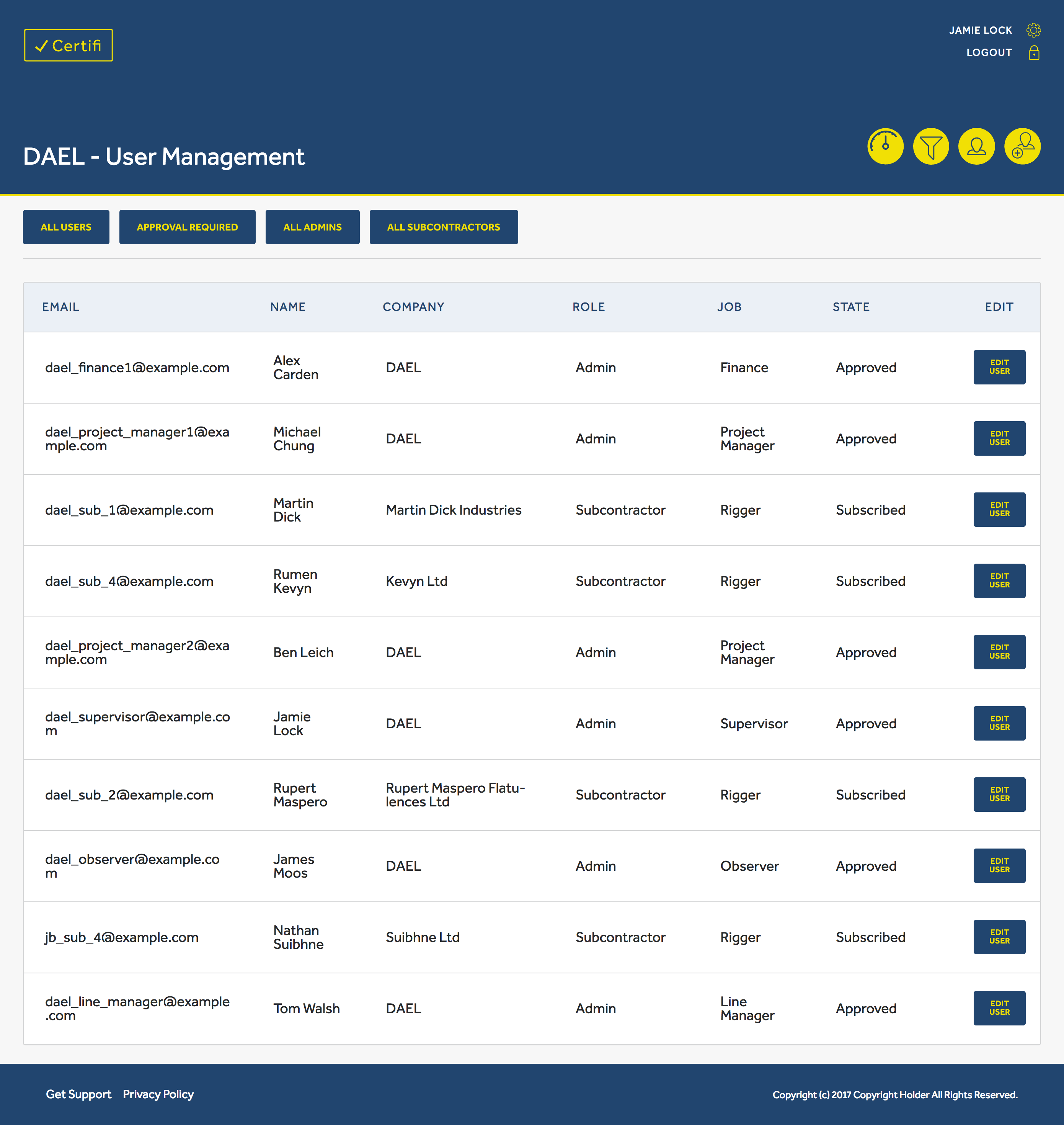
As the name suggests, the User Management page contains a list of all your users both Admin and Subocontractor using Certifi within your business. Only Supervisor users can access this list.
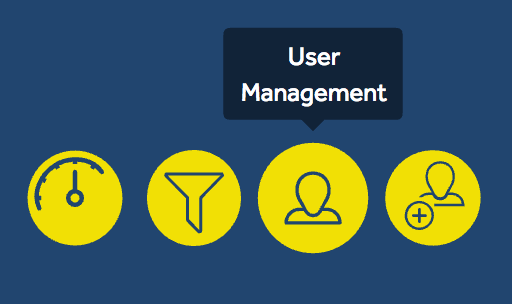
The users page can be accessed from the Certifi header using the ‘User Management’ button, which redirects you to the User Management page.
Use the quick filters to refine the users list to the type of user you want to see or users awaiting approval for example.

Creating a user account is an invite only process. Only Supervisors have permission to send an invitation to new users. Users can only access Certifi after having accepted an invitation.
- Click the ‘Create User’ button in the Certifi header
- Fill the ‘Send Invitation’ form. The way you fill out this form depends if you wish to create a subcontractor or admin user.
- If creating an Admin user, only fill the: Email, Role and Job fields
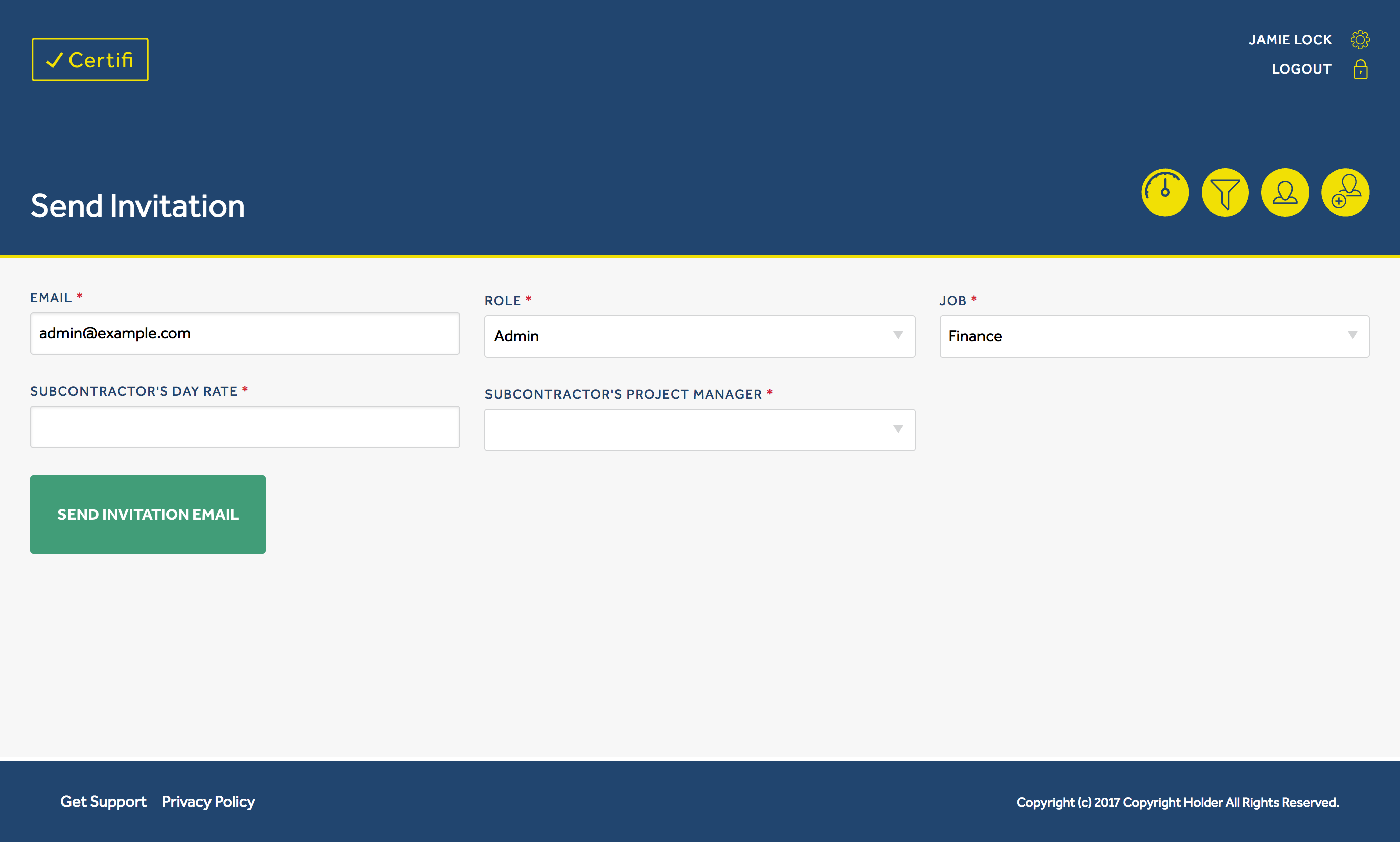
- If creating a Subcontractor user, their Job must be selected as Rigger, the Subcontractor’s Day Rate and Subcontractor’s Project Manager fields must also be filled.
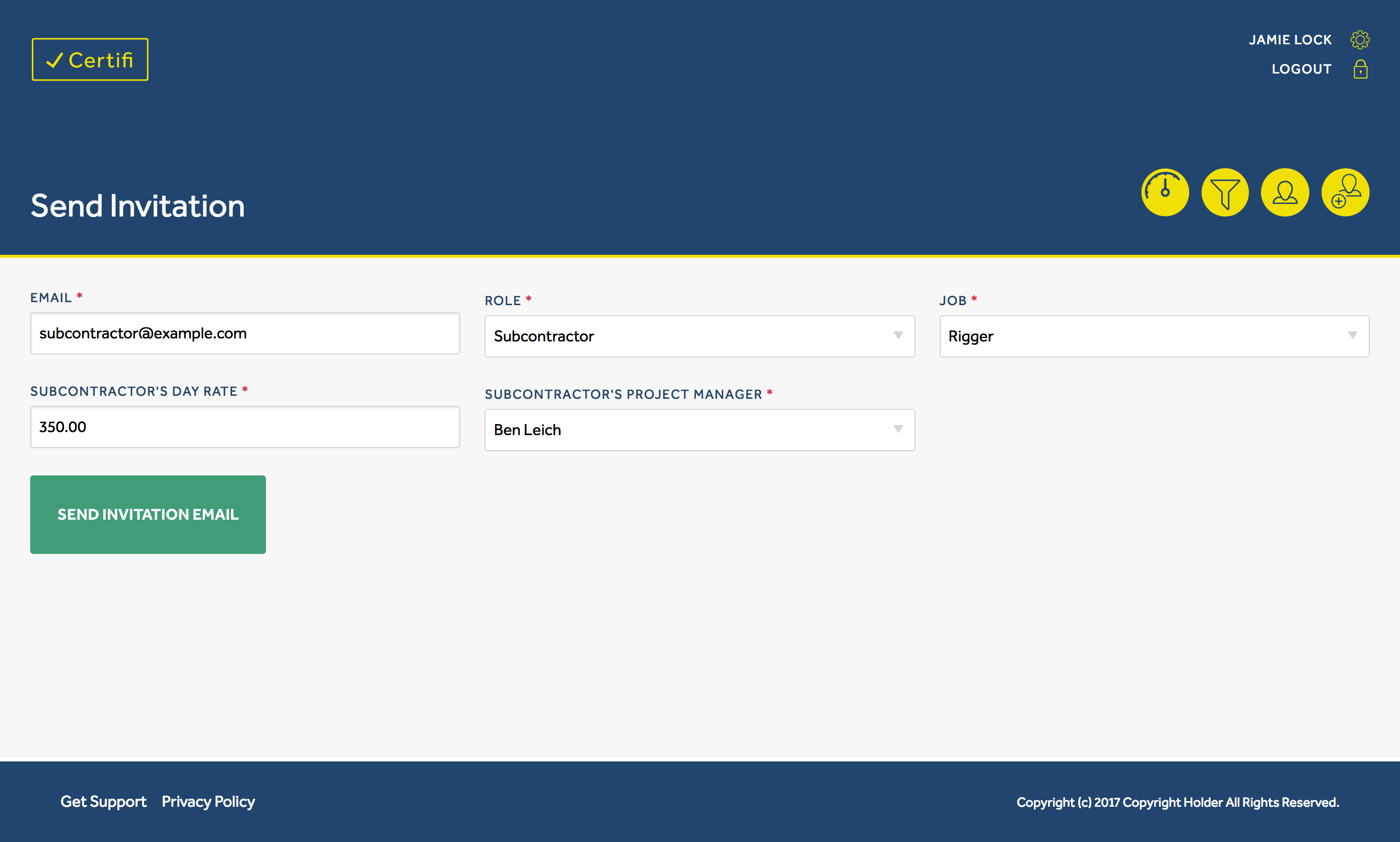
- If creating an Admin user, only fill the: Email, Role and Job fields
- Click the ‘Send Invitation Email’ button. This automatically sends an invitation email to the new user’s email address. An example of this email can be seen below.
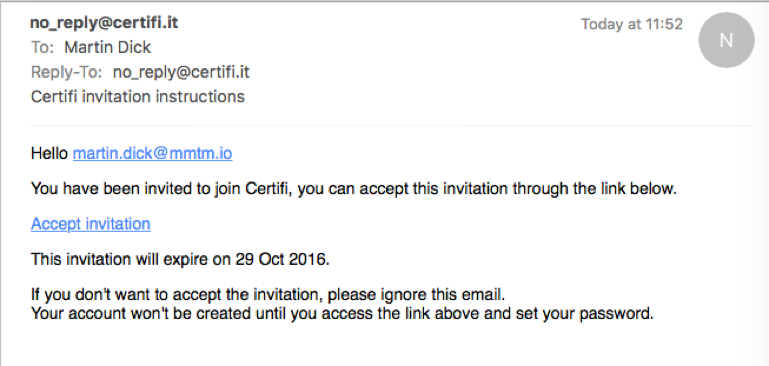
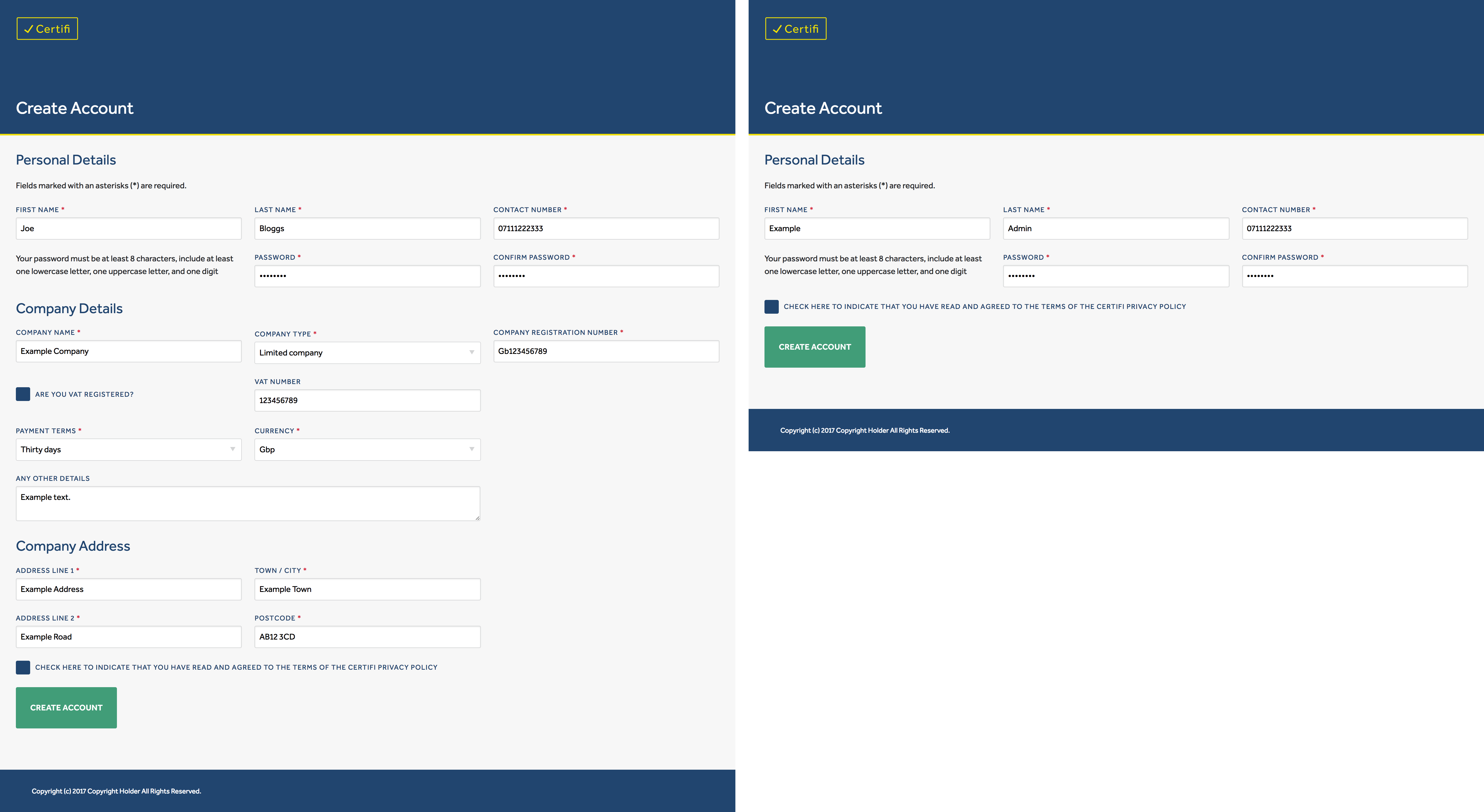
- After the new user clicks the ‘Accept Invitation’ link in the email, the user will be redirected to a ‘Create Account’ page. This page renders differently depending on whether you are an Admin or Subcontractor as seen below.
- Once the user has created their account, they will be immediately logged out with the message: “Your account details were set successfully. Once your administrator has approved these details, you will be able to sign in”. The Supervisor will receive the following email asking them to now Accept or Reject their account details.
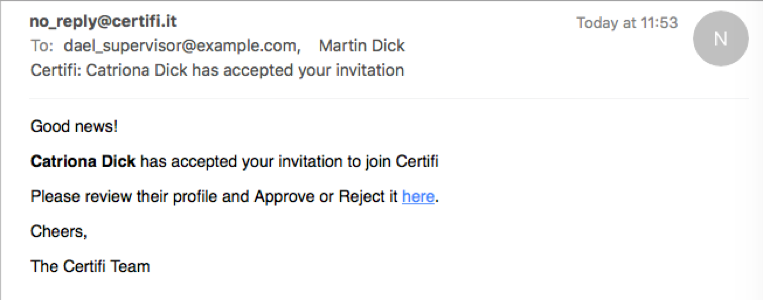
The user will not be able to login until after the Supervisor has Accepted or Rejected their account.
Update User Profile
Supervisor users can update any other user’s account details within their organisation using the Update User page. This page displays each user’s account information along with a allowing the Supervisor to update some of their details.

For a Subcontractor, a Supervisor can update the following details:
- Project Manager
- Day Rate
- State
For a Admin, a Supervisor can update the following details:
- Job
- State
The Update User page can be found on the User Management Page by clicking the ‘Edit User’ button next to each users account details. Please note this is different from the Edit User Settings Page of this document.
Invoices
Invoice Dashboard
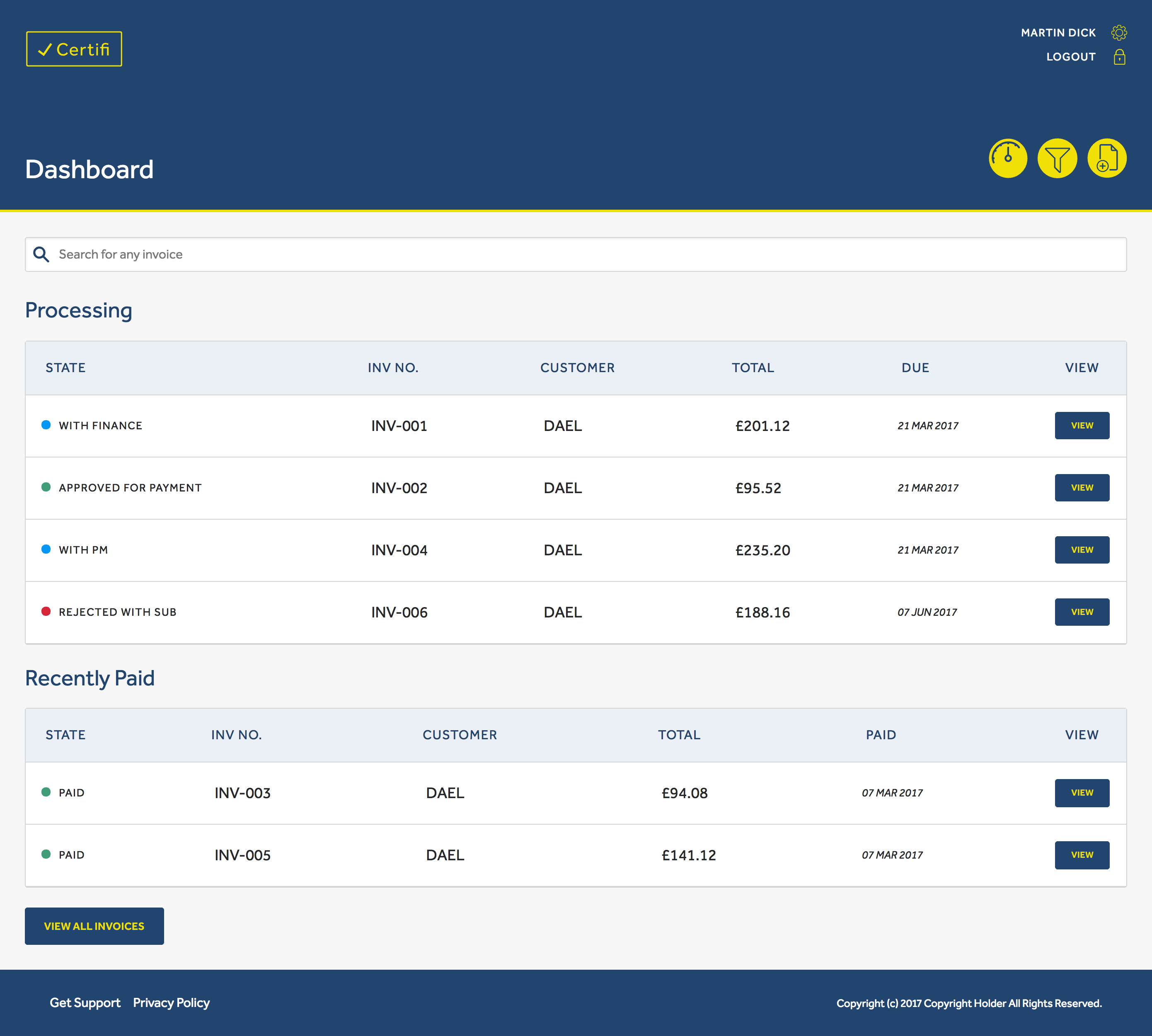
The invoice dashboard is the homepage of the Certifi app; here you will see a list of all your invoices. Your invoices are split into two tables one depending upon your role, as explained below. Clicking the view button on a row will take you to the full individual invoice.
Subcontractor
As a subcontractor the first table displays all processing invoices they have through out the whole system. This includes invoices in the Draft, with Project Manager, With Finance, Approved for Payment and Rejected states. The second table displays all invoices that have been marked as Paid.
Admins
As an admin the first table displays all invoices that require your attention for an action. The second table displays all invoices you you have already actioned and are awaiting another users action or are complete.
Invoice Filtering
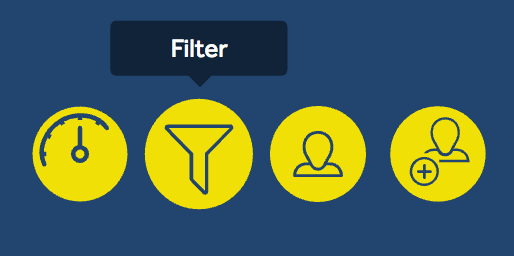
Invoice filtering can be accessed by clicking the Filter button in the Certifi header. The invoice filter page has a powerful search and filtering function. You can search by Purchase Order number or Invoice number and you can filter by Invoice State, Date or Subcontractor. To use the filter, just select your desired attributes and click the ‘Search’ button.
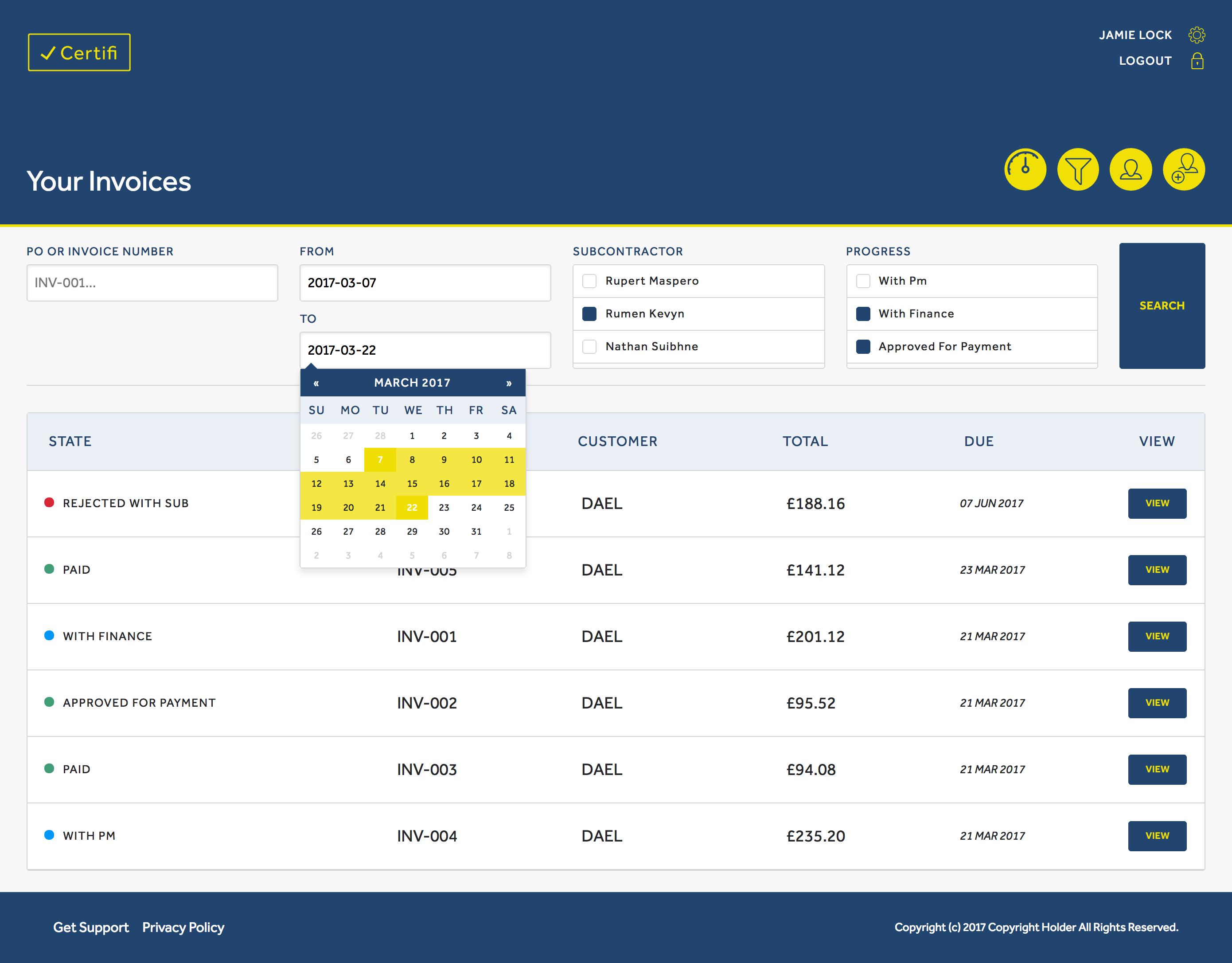
So in the above example, invoices within the date range 2nd Oct and 27th Oct and with a state of either: With Finance, Approved For Payment or Paid will be displayed.
Invoice States
The below image represents the six possible states of your invoice.
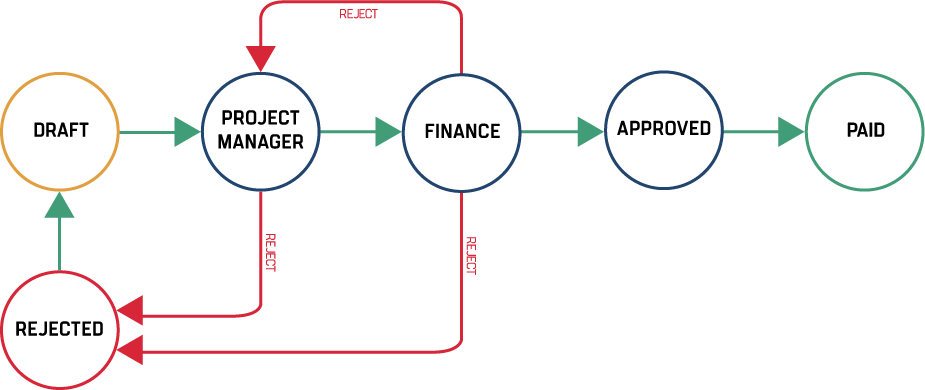
Once submitted, your invoice goes to the with PM state where the project manager will check your invoice and approve or reject it. Upon approval the invoice is passed to the Finance department who approve it for payment. Once the invoice has been paid, the state is updated to Paid. At any point in this process the invoice can be rejected. Each of these states are represented by one of four colours as shown in the above image. Yellow for draft, blue for invoice processing states, red for rejected and green for paid. These colours are used to be a quick reference to show the invoice’s state.
Invoice View
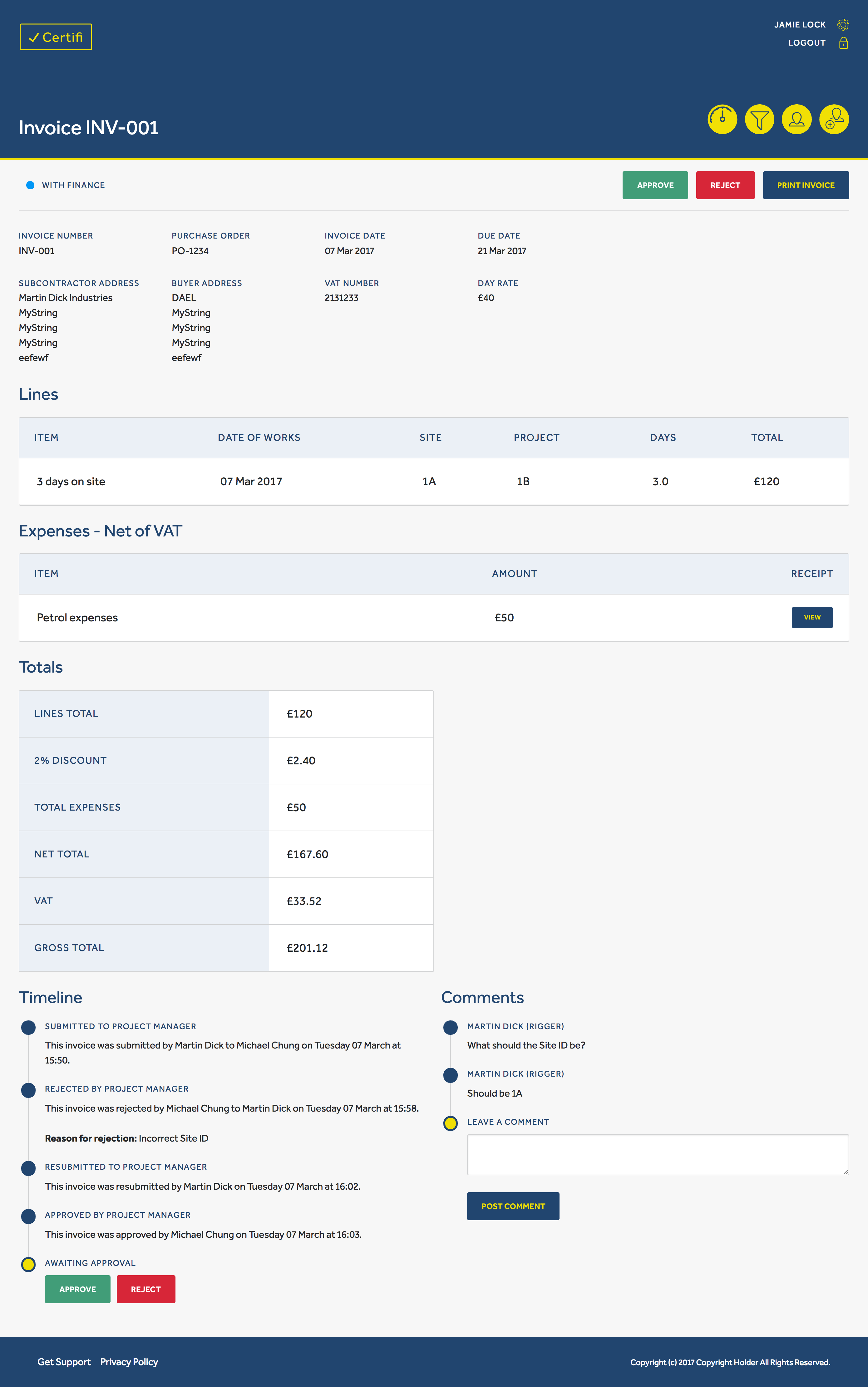
Certifi presents your invoices using the format in the image below. These can be broken down into three areas: Header, Line Items, Expenses and Totals. Line items contain descriptions and quantities of the items you sell. The top header on each invoice displays the current invoice state and any quick actions available. Meanwhile the remainder of the header is for other necessary fields: Purchase Order, Due Date, VAT Number (if applicable), Addresses, Invoice number, Day Rate, and Invoice Date. expenses contain descriptions, amounts and if attached image of receipts of expense incurred.
Create an Invoice
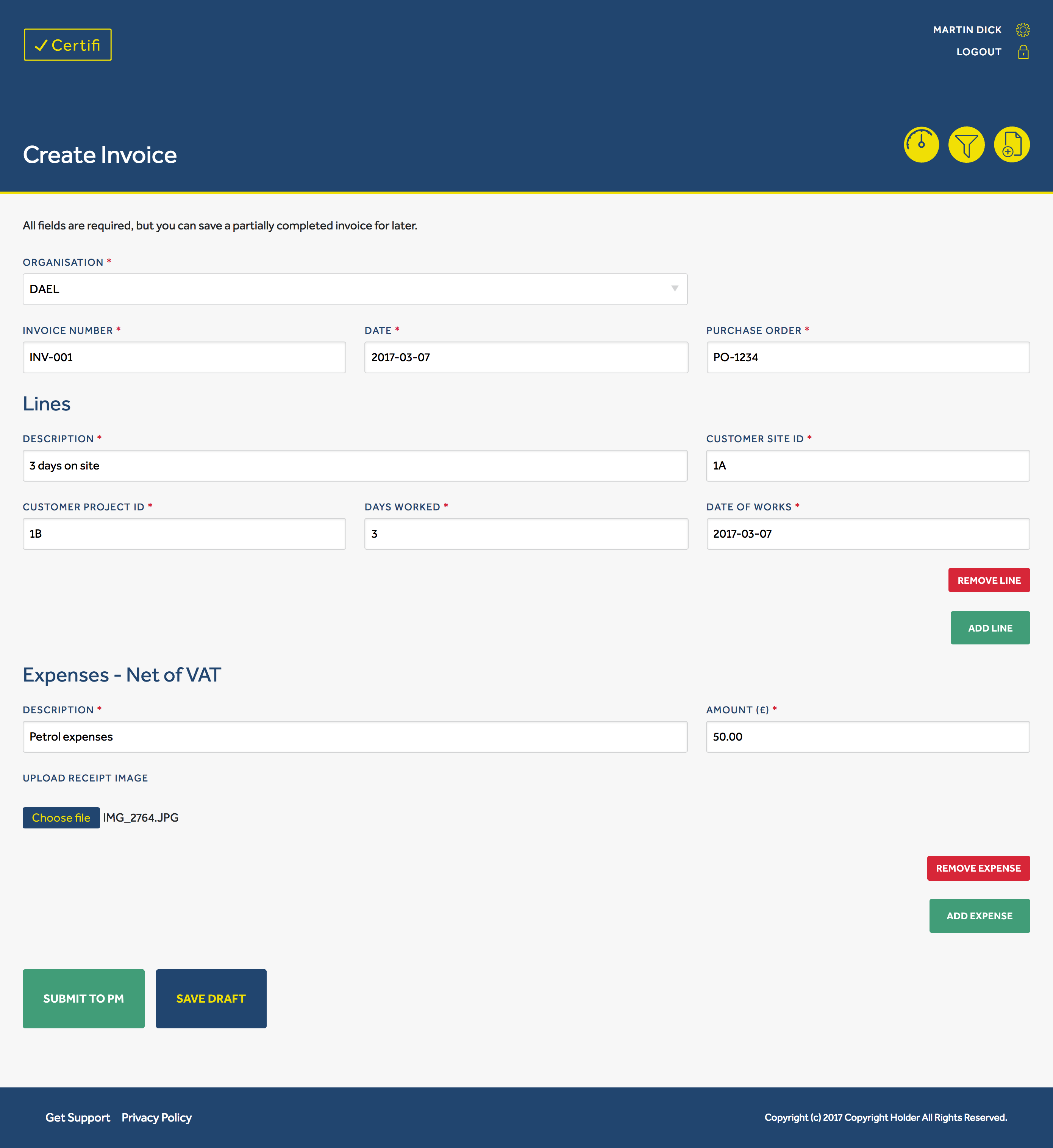
Creating an invoice using Certifi is designed to be quick and simple; just use the following steps below:
- Click the ‘Create Invoice’ button in the Certifi header
- Fill in all the fields appropriate for your specific invoice
- Create an invoice line, this shows up as a line item on your invoice once created.
- Add any expenses if required.
- Click ‘Save as Draft’ or ‘Submit to PM’ button depending on preference.
Invoice Timeline
The invoice timeline is displayed below each invoice view and represents a history of the actions taken upon that invoice. Each state change is represented by a point displaying the action and the date and time that the event occurred with a short description of who was involved.
Therefore you can see the how your invoice is being processed through the system like in the below example.

Once your invoice has been paid and hence completed, the message: “The invoice has been paid. No actions required.” will be shown.
Invoice Comments Box
The invoice comments box is your way of communicating with those who are part of the invoice acceptance process.

To post a comment, just write your comment in the comments box and click the ‘Post Comment’ button
Approve / Reject Invoices
Admin users have permissions to Accept or Reject invoices. If you’re happy with the invoice, you can approve it or if there are problems with it you can reject it. This is done via the invoice timeline on each invoice or quick at the top of the invoice.
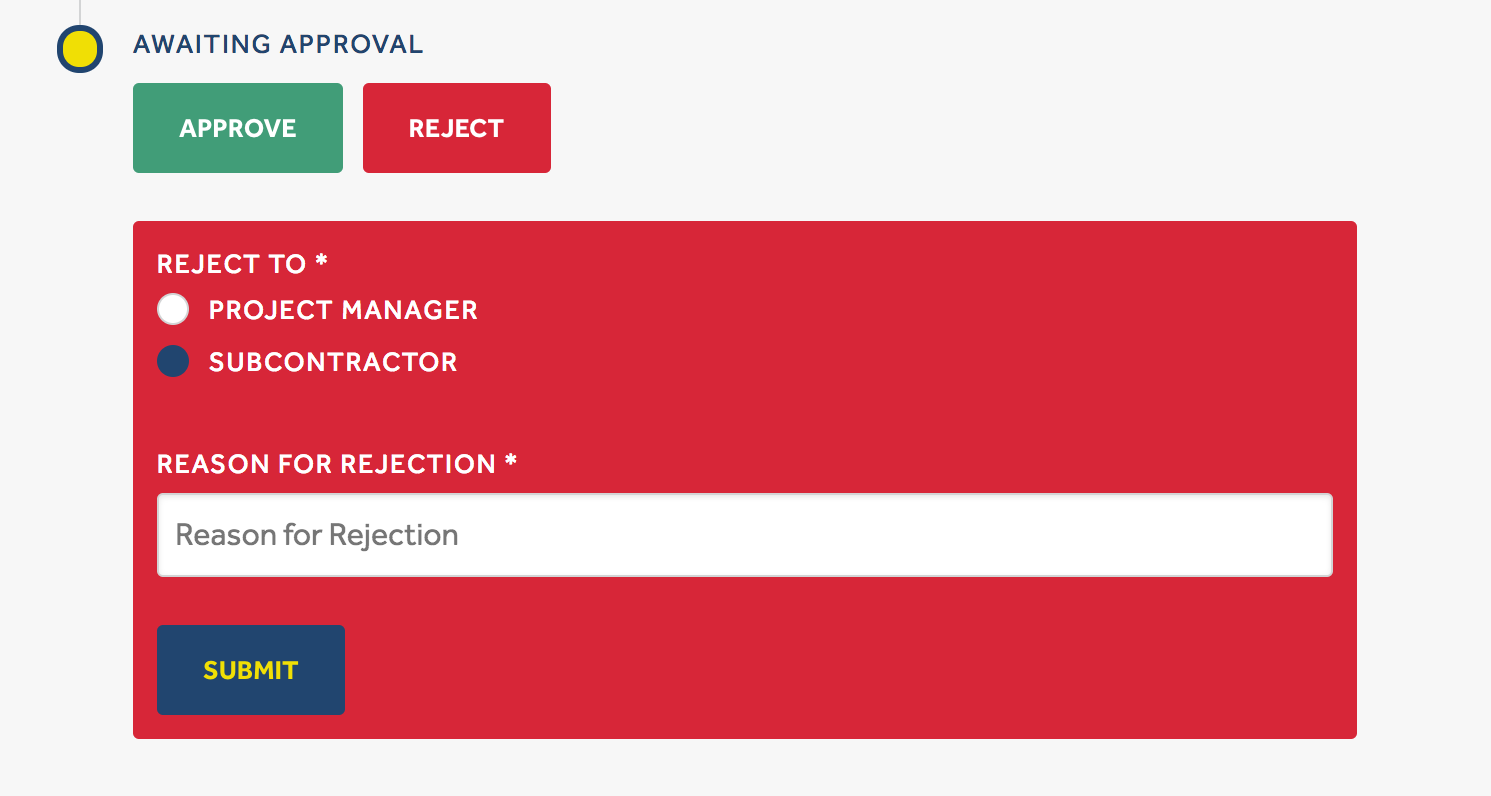
If approved successfully, the message “Invoice successfully approved” will be shown and the invoice state will change. If rejected, a reason for rejection must be accompanied in the comments box. If rejection is successful the message “Invoice successfully rejected” will be shown and an automatic email will be sent notify the subcontractor of the rejection event.
User Profiles
Sign-Up Process
Creating an account with Certifi is an invite only process. This means that only admins with specific access rights to Certifi must send an invitation to you before you can start using the app.
- Once the admin user has filled in the necessary details you will receive an email, click the ‘Accept Invitation’ link, this will redirect you to the ‘Create Account’ page.
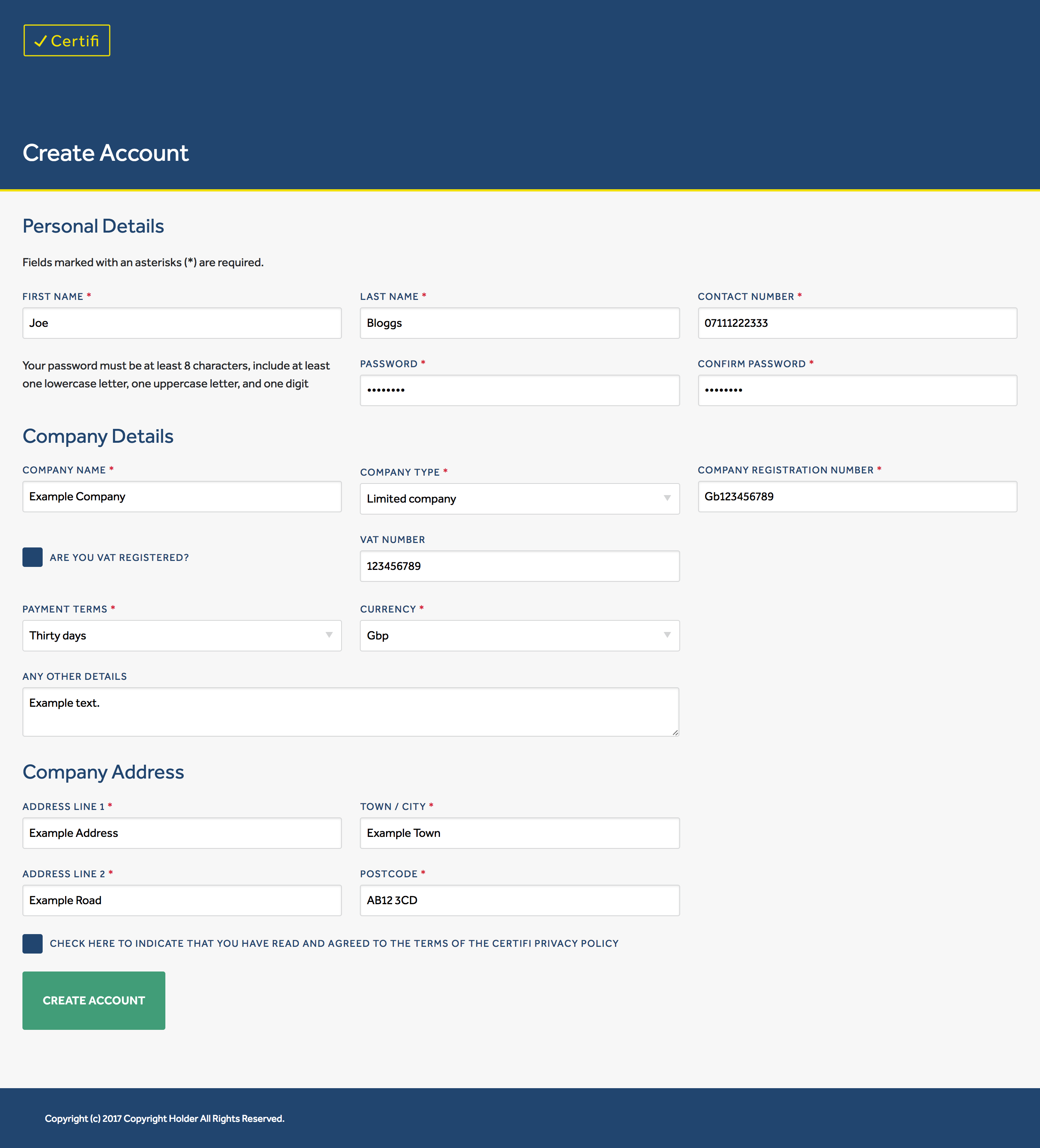
- Once redirected, fill out all the required fields and click the ‘Create Account’ button. The required fields will be different depending on whether you are a Limited Company or Sole Trader.
- You will then be logged out and redirected to the homepage. At this point an automatic email is sent to the admin who invited you to check your new account details and to accept or reject your account.
- If rejected, you will receive an email like the one below. Log in and edit your profile details, once submitted this will again send an automatic email to the admin who can then approve your account.
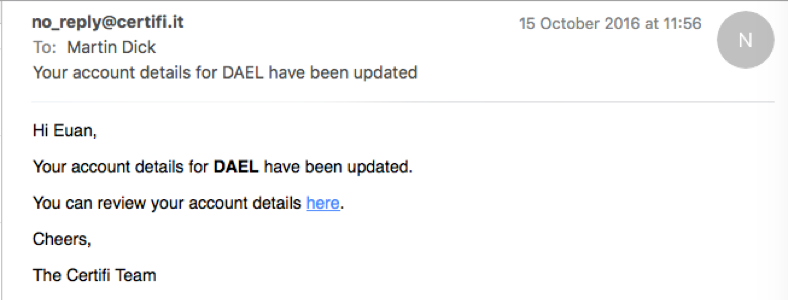
- Once approved, you will receive the same email as in Figure 3. However, when you next login you will have full access to Certifi!
Edit User Details
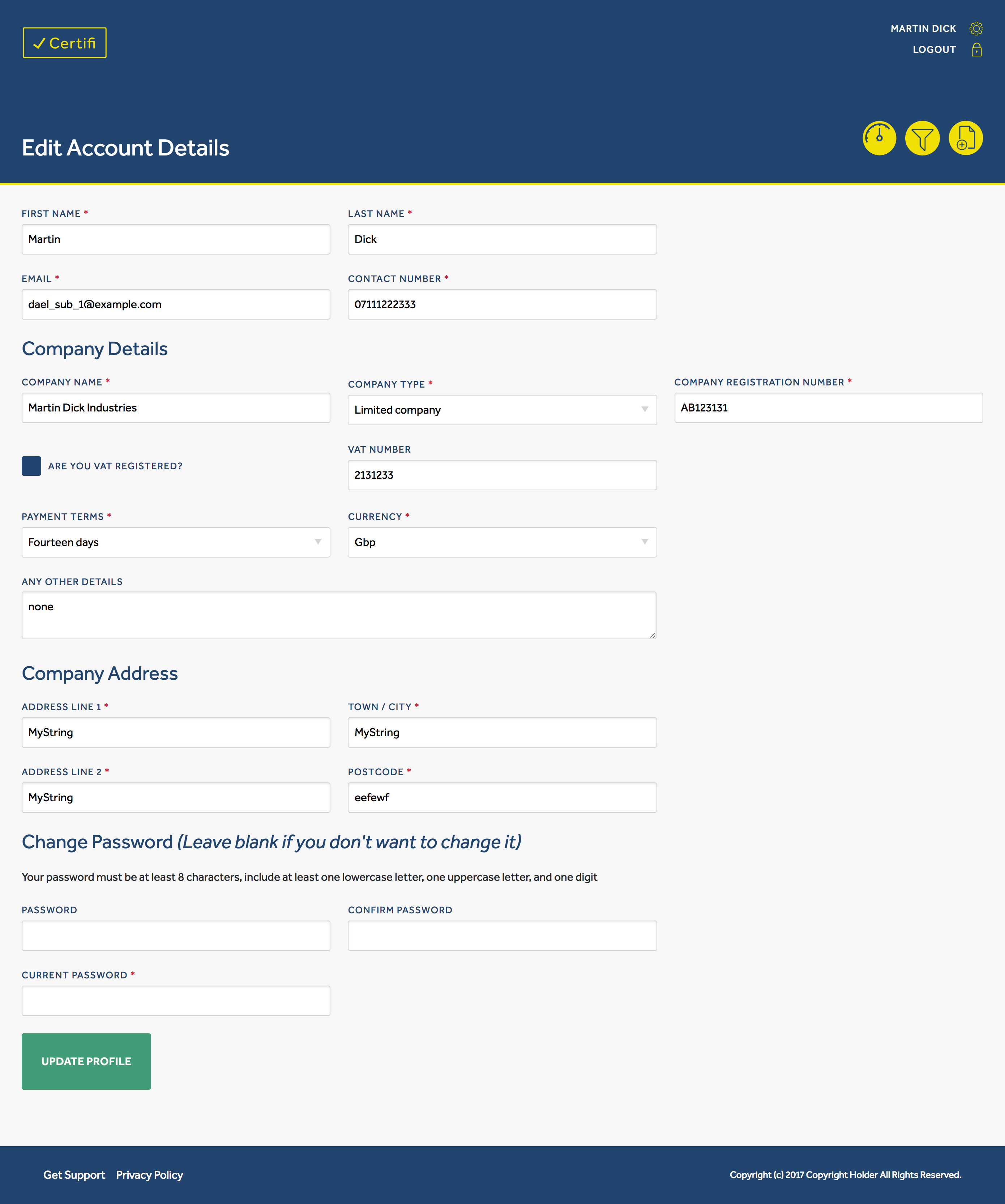
If you need to update your user details, for example if your mobile contact number changes you can do so using the Edit User Settings page. Follow the steps below:
- Click the Gear icon in the Certifi header
- Edit any details you would like to change (for example your contact number
- Fill in the ‘Current Password’ field with your current password (this must be filled in order for your details to successfully update)
- Click the ‘Update Profile’ button
- If updated successfully, the message: “Your account has been updated successfully” will be shown. An email will also be sent to your company admin who can double check your new details and record them if necessary.
Other Features
Get Support
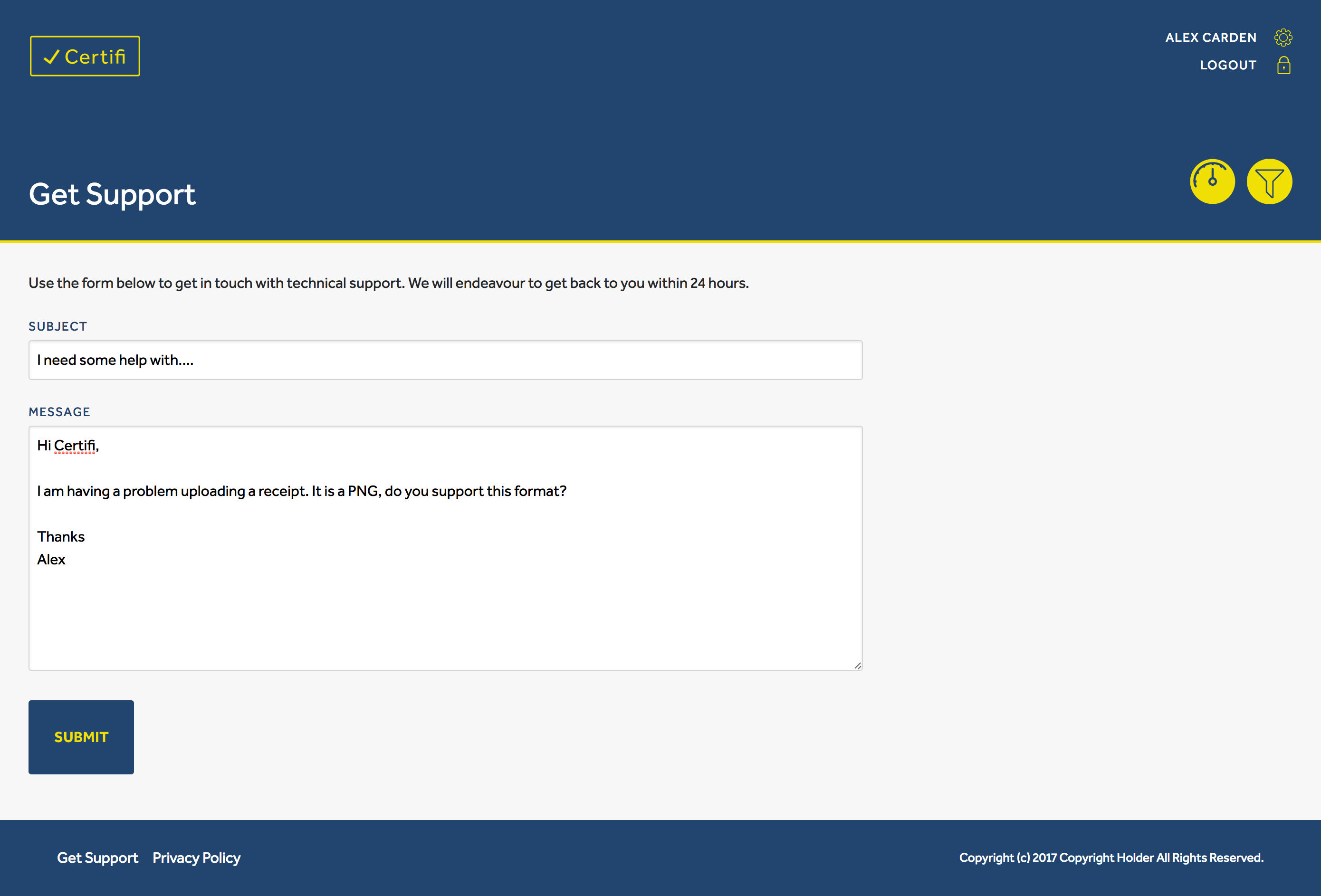
Use the Get Support form to get in contact with the Certifi Team if you any issues both technical or commercial.
- Click the ‘Get Support’ button on the footer of any Certifi page
- Fill out the form with your request. This automatically sends an email with your message to the Certifi Team. We will endeavour to respond to all requests within 24 hours.
Email Notifications
Email notifications are setup to email each subcontractor upon any of the following events:
- When your invoice has been paid
- When your invoice has been rejected
- When you have invoices in the rejected state that have been left inactive for 48hrs
- When the admin updates any of your account details (eg. Changes your assigned Project Manager)
Email notifications are setup to email each project manager upon any of the following events:
- When an invoice has been received from an associated subcontractor
- When an invoice has been rejected by Finance
- When an invoice in the with PM state have been left inactive for 48+hrs
- Supervisor updates their account details
Email notifications are setup to email each finance user upon any of the following events:
- When a Project Manager has approved an invoice
- When an invoice in the with Finance state has been left inactive for 48+hrs
- Supervisor updates their account details
Email notifications are setup to email each supervisor upon any of the following events:
- When a user successfully accepts your invitation
- When a user updates their account details
No email notifications are currently sent to any line manager or observer users. You are unable to turn off these notifications, however if you have feedback please use the Get Support form.